

Your laptop’s built-in webcam doesn’t have to deliver disappointing results. While hardware constraints mean most laptop cameras struggle with image quality, several practical adjustments can noticeably improve what you see on screen during video calls, meetings, and streaming sessions.
Why Laptop Webcams Underperform
Laptop manufacturers face a fundamental challenge: fitting a quality camera into an ultra-thin lid leaves almost no room for anything but the smallest sensors. These compact sensors capture far less light than the larger optics found in smartphones, resulting in images that appear grainy, blurry, or washed out. The good news is that understanding this limitation helps you address it effectively without spending extra money.
Tip 1: Clean Your Lens First
Before adjusting any settings, take a microfiber cloth and gently wipe your webcam lens. Since your fingers touch the laptop lid every time you open it, fingerprints accumulate quickly on the camera glass. Even a thin film of dust or smudging creates a noticeable blur that no software adjustment can fix. Avoid household cleaners, as they can damage your screen and surrounding surfaces.
Tip 2: Master Your Lighting Setup
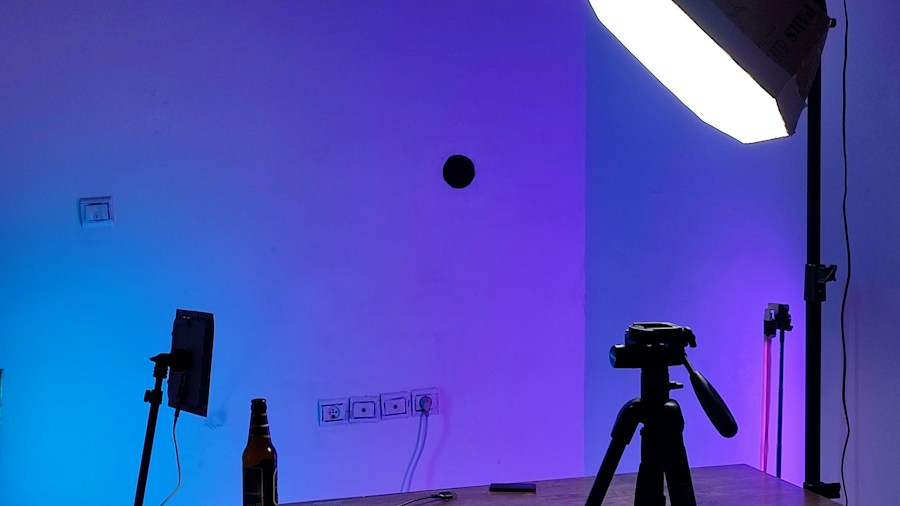
Lighting matters more than any camera setting. Poor lighting ruins even the best webcam images, while excellent lighting can transform a mediocre one. Never position yourself with bright light sources behind you, as laptop cameras struggle to handle the contrast between shadows and highlights. Instead, face toward a window or position a table lamp in front of you to illuminate your face evenly.
If you want to invest in dedicated lighting, position your setup carefully with streaming lights like the Elgato Key Light or Logitech Litra Glow. Without space or budget for external lighting, your computer screen itself can serve as a light source. On Mac devices, the Edge Light feature creates a ring light effect directly on your display, available on Apple silicon Macs running macOS 26.2 or later. Windows users can achieve similar results with third-party applications like LightON or Edge Light for Windows.
Tip 3: Adjust Windows Webcam Settings
Windows 11 offers built-in controls to optimize your webcam performance. Open Settings, navigate to Bluetooth & Devices, select Cameras, and choose your webcam. Depending on your model, you’ll find sliders for brightness, contrast, saturation, and other parameters. Experiment with these settings in your actual lighting conditions to find what looks best, then save your preferences as defaults.
Some webcams also support Video HDR, which balances the exposure between the darkest and brightest parts of your image. This feature can dramatically improve overall clarity and detail in challenging lighting.
Tip 4: Use Graphics Card Enhancements
If you have an NVIDIA graphics card, NVIDIA Broadcast offers powerful software improvements including noise reduction and eye contact correction. These features work at the driver level, benefiting any application that uses your webcam. Users without NVIDIA cards should explore alternatives like Camo, which provides similar enhancement capabilities across different hardware platforms.
Tip 5: Try Mac Studio Light Features
Mac users can access Studio Light settings by clicking the green camera icon in the Menu Bar when your camera is active. This feature applies professional lighting effects to your video feed without requiring external hardware. Combined with Edge Light, these built-in tools can create a polished, professional appearance for video meetings and streaming.
Tip 6: Optimize Your Camera Placement
Position your webcam at or slightly above eye level to create a flattering angle and ensure proper focus on your face. Avoid placing your laptop on your lap, which typically points the camera downward and creates an unflattering perspective. Modern monitor designs increasingly integrate webcams to solve this positioning challenge while keeping your display at the correct height for your posture.
Tip 7: Consider an External Webcam as a Last Resort
If you’ve implemented all these adjustments and still feel dissatisfied, investing in an external webcam makes sense. Quality external webcams include larger sensors and better optics, delivering significantly sharper images. You can also repurpose a high-end camera as a webcam or use your iPhone as a Mac webcam for even better results.
Many of these tips require minimal effort and zero investment. Start with lens cleaning, optimize your lighting, and adjust your software settings before deciding whether an upgrade is necessary. Most users discover that thoughtful environmental adjustments and software fine-tuning deliver surprisingly professional results from their existing hardware.












Write Your Review
No reviews yet. Be the first to share your experience!