

A proper computer setup goes beyond just having a desk and a chair. The placement of your monitor is critical to preventing eye strain, reducing neck and back pain, and maintaining good posture throughout your workday. Whether you work from home or commute to an office, understanding the ideal distance between your eyes and your display is essential for long-term comfort and productivity.
The Arm’s Length Rule: Your Starting Point
The simplest way to determine the right monitor distance is to use the arm’s length rule. Extend your arm straight out in front of you, and position your monitor so your fingertips just barely touch the screen. This basic guideline aligns perfectly with the scientifically recommended viewing distance of 20 to 28 inches from your eyes to the display. This distance prevents both eye strain from squinting at a screen that is too far away and postural problems from leaning forward when the monitor is positioned too close.
Adjust Your Distance Based on Monitor Size
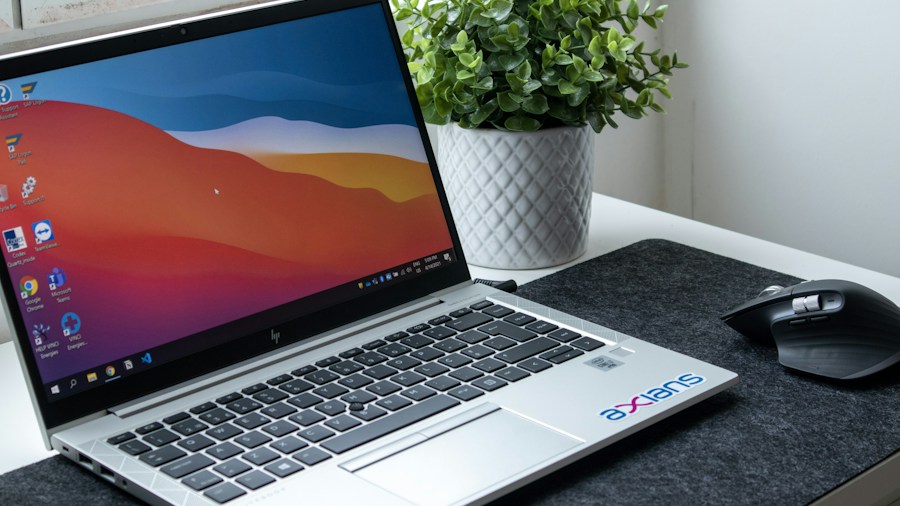
Not all monitors are created equal, and larger screens require you to sit further back. For standard 24-inch displays, the 20 to 28 inch range works well. When you upgrade to a 27-inch monitor, increase that distance to 24 to 32 inches to maintain comfortable viewing without moving your head excessively. If you have invested in a larger 32-inch display or bigger, you will need to position yourself 34 to 38 inches away. At these larger sizes, the monitor’s resolution becomes increasingly important. Higher resolution displays allow you to sit closer while still maintaining image clarity without seeing individual pixels.
Account for Laptop Screens
Laptop screens present a unique challenge because of their smaller size. Many people make the mistake of working directly at the laptop’s built-in keyboard and trackpad, which places the screen too close to their eyes and forces them to look down at an unhealthy angle. The solution is to invest in a separate external keyboard and mouse, allowing you to maintain proper arm’s length distance while keeping your workspace ergonomic. You may also need to adjust your font size or screen scaling to keep text readable at the correct distance.
Get the Height and Angle Exactly Right
Distance alone is not enough. Your monitor should sit directly in front of you at eye level. The top of the screen should be at or slightly below eye level, with the middle section positioned about 15 to 20 degrees below your line of sight. This positioning requires proper chair height adjustment, and it is critical that your feet remain flat on the floor while seated. If your desk and chair are height-adjustable, use them to achieve this alignment. For laptop users, monitor stands and risers are affordable solutions that lift the screen to the correct height without breaking your budget.
Tilt Your Monitor Appropriately
A slight backward tilt of 10 to 20 degrees is ideal for most users. However, if you wear bifocals, you will need to lower the monitor position further and increase the tilt to 30 to 45 degrees to view the screen comfortably through the bottom portion of your lenses. Do not overlook this detail if it applies to you, as it significantly impacts your viewing comfort.
Manage Screen Brightness and Glare
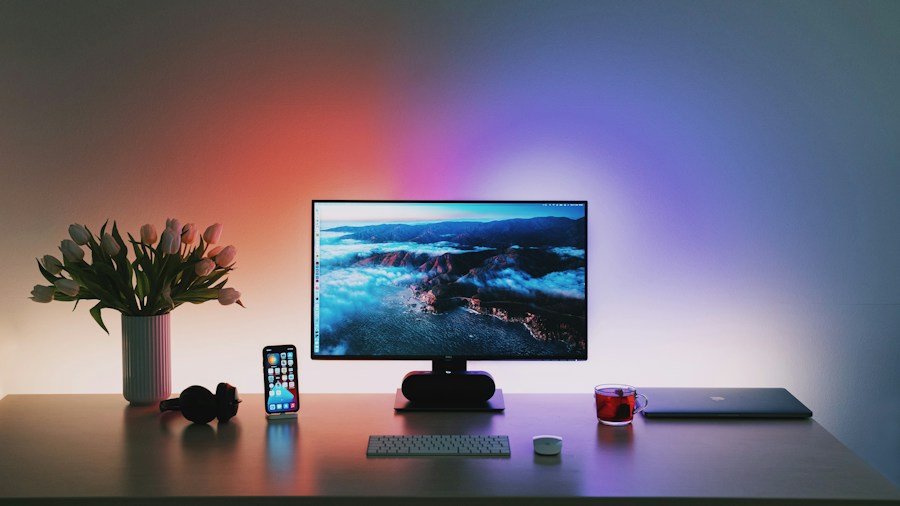
Even with perfect distance and angle, excessive brightness can cause eye fatigue. Adjust your monitor’s brightness to a comfortable level that matches your surrounding lighting conditions. Many offices and home workspaces benefit from dedicated monitor lighting solutions that reduce glare and eye strain. If your monitor lacks built-in anti-glare technology, consider purchasing an anti-glare screen filter to protect your eyes during extended work sessions.
Apply These Rules to Multi-Monitor Setups
If you use multiple displays, these positioning guidelines apply to each screen individually. Center your primary monitor directly in front of you at the correct distance and height, then position secondary monitors at appropriate angles. When your monitor setup includes advanced features, take time to configure all ergonomic settings to match your workspace. Proper positioning across all displays prevents you from developing asymmetrical strain and postural problems.
Taking time to set up your monitor correctly is one of the most impactful investments you can make in your workspace health and productivity. Small adjustments to distance, height, and angle can eliminate headaches, reduce eye fatigue, and improve your comfort during long work sessions.











Write Your Review
No reviews yet. Be the first to share your experience!